Orders: find and manage bookings
Search orders, inspect booking summaries, and open document actions.
Finance → Orders
Step by step
- 1
Open Orders and search by voucher, booking reference, type, GDS, service, or customer.
- 2
Use the status filter to narrow the list. Clear the search or status filter if an expected booking is missing.
- 3
Open a record to check its customer, vendor, passenger, booking reference, status, total, and items.
- 4
Open the voucher or quotation document from the available actions when you need the customer-facing view.
- 5
Use Edit only when the order can be changed, and review any invoice-replacement confirmation before saving. Choose other lifecycle actions only after checking the record and confirmation.
See it in the workspace
Actual portal screens. Private values are hidden where needed. Open an image to see it at full size.
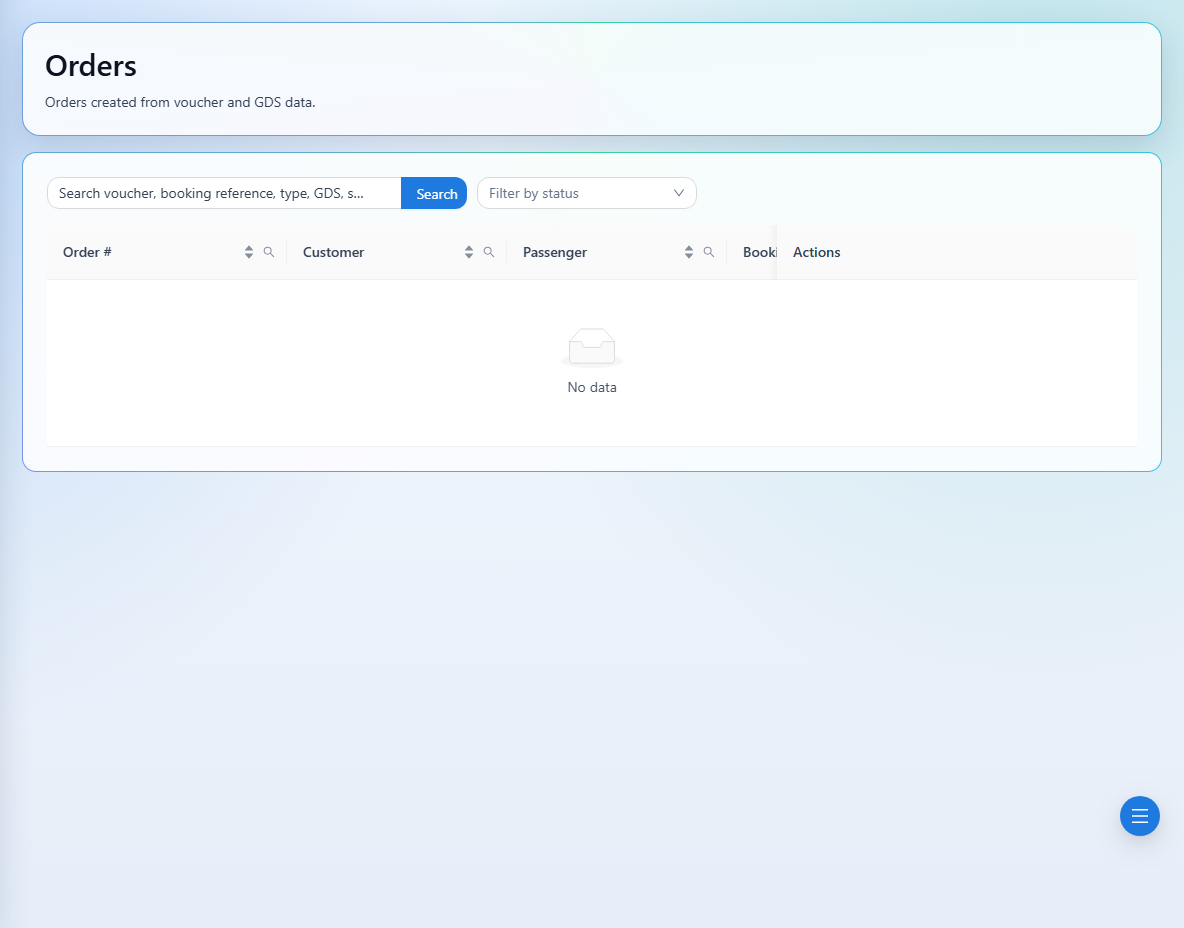
Actions depend on your role and the current order status. Use Reference Search when you have a ticket number or airline PNR instead of an order number.