Complete your voucher details
Keep passengers, flights, and travel services together in one voucher.
Finance → Create Order → Order
Step by step
- 1
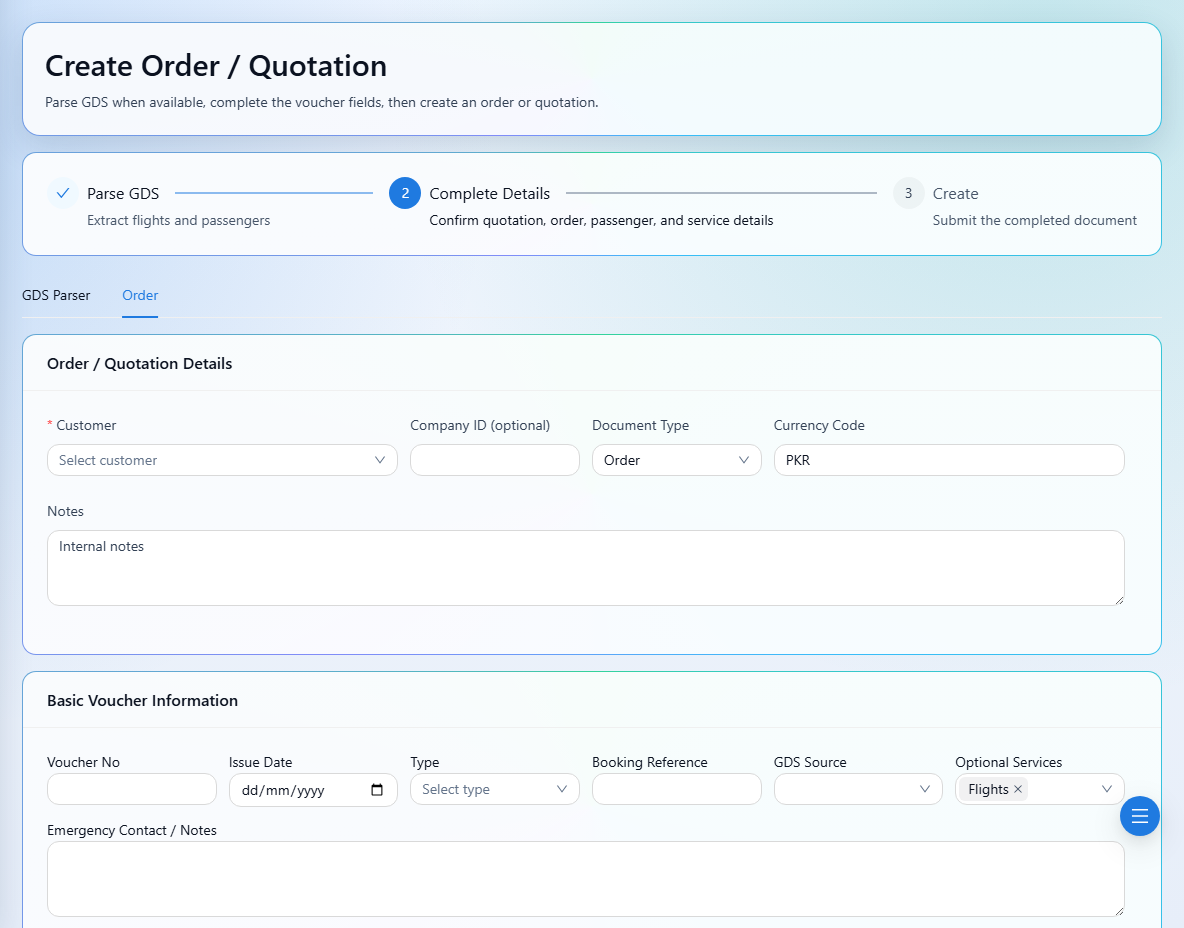
Check the voucher number, issue date, travel type, package type, booking reference, and GDS source in the header.
- 2
Enter the emergency contact and review company or executive contact details.
- 3
Enable the optional service sections needed for this booking.
- 4
Add passenger names, passport numbers, ticket numbers, visa details, and notes in Passengers.
- 5
Fill in Flights, Visa, Transfer, Ziarat, Hotels, and Services as applicable. Review supplier and pricing details in each active section.
See it in the workspace
Actual portal screens. Private values are hidden where needed. Open an image to see it at full size.
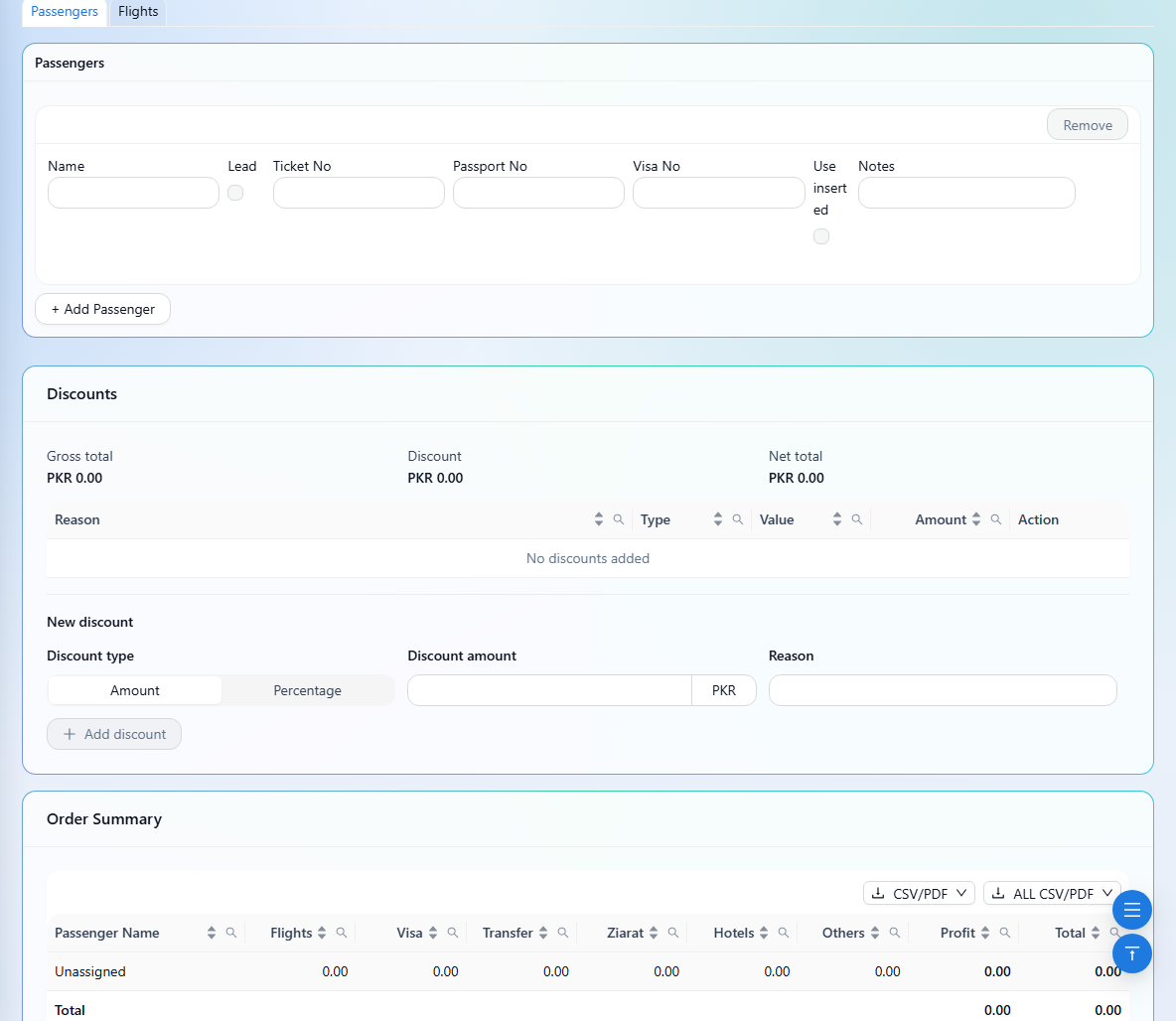
Adding a passenger adds a matching pricing row. Check passenger and pricing alignment after changing or removing names.