Refund Allocation: settle refund orders
Allocate customer refunds or vendor returns, including customer invoice adjustments.
Finance → Refund Allocation
Step by step
- 1
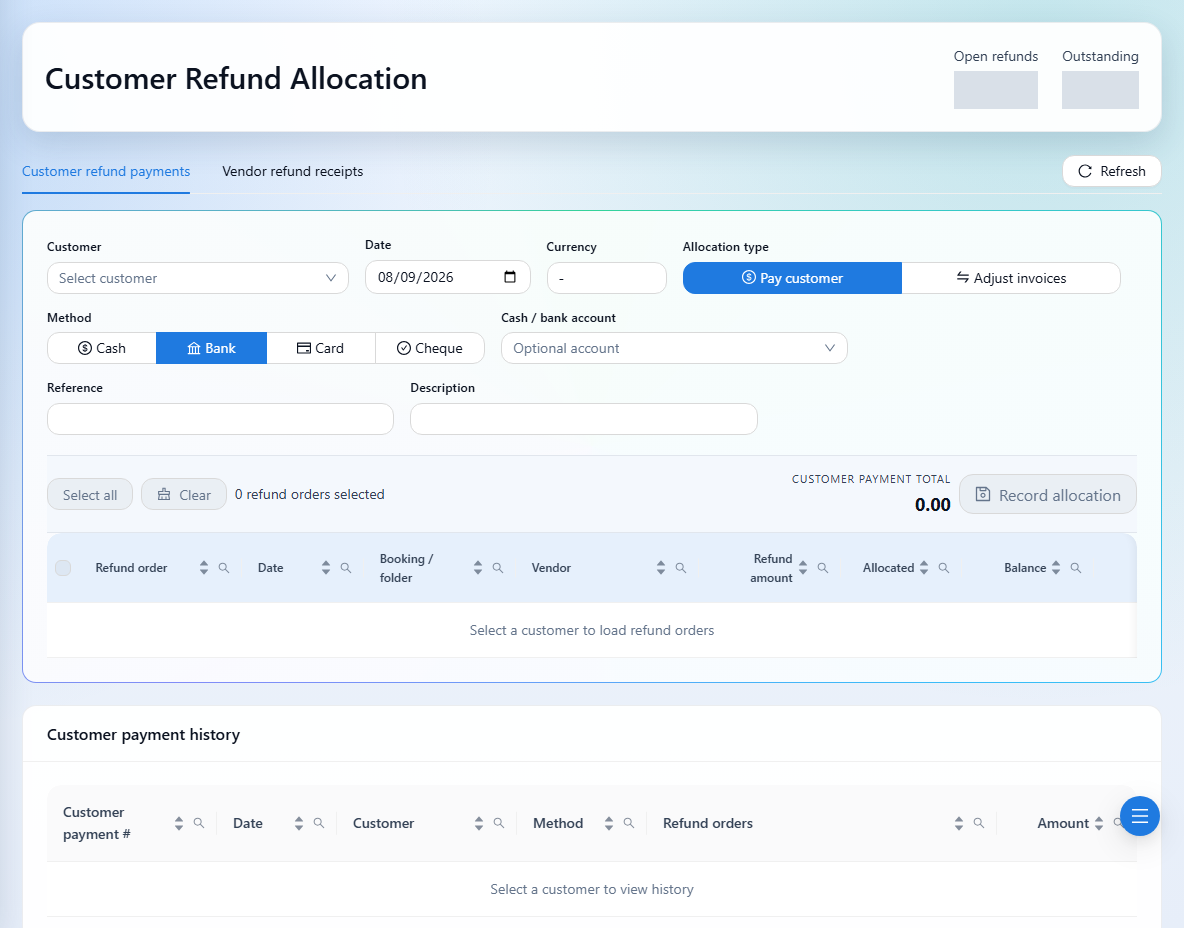
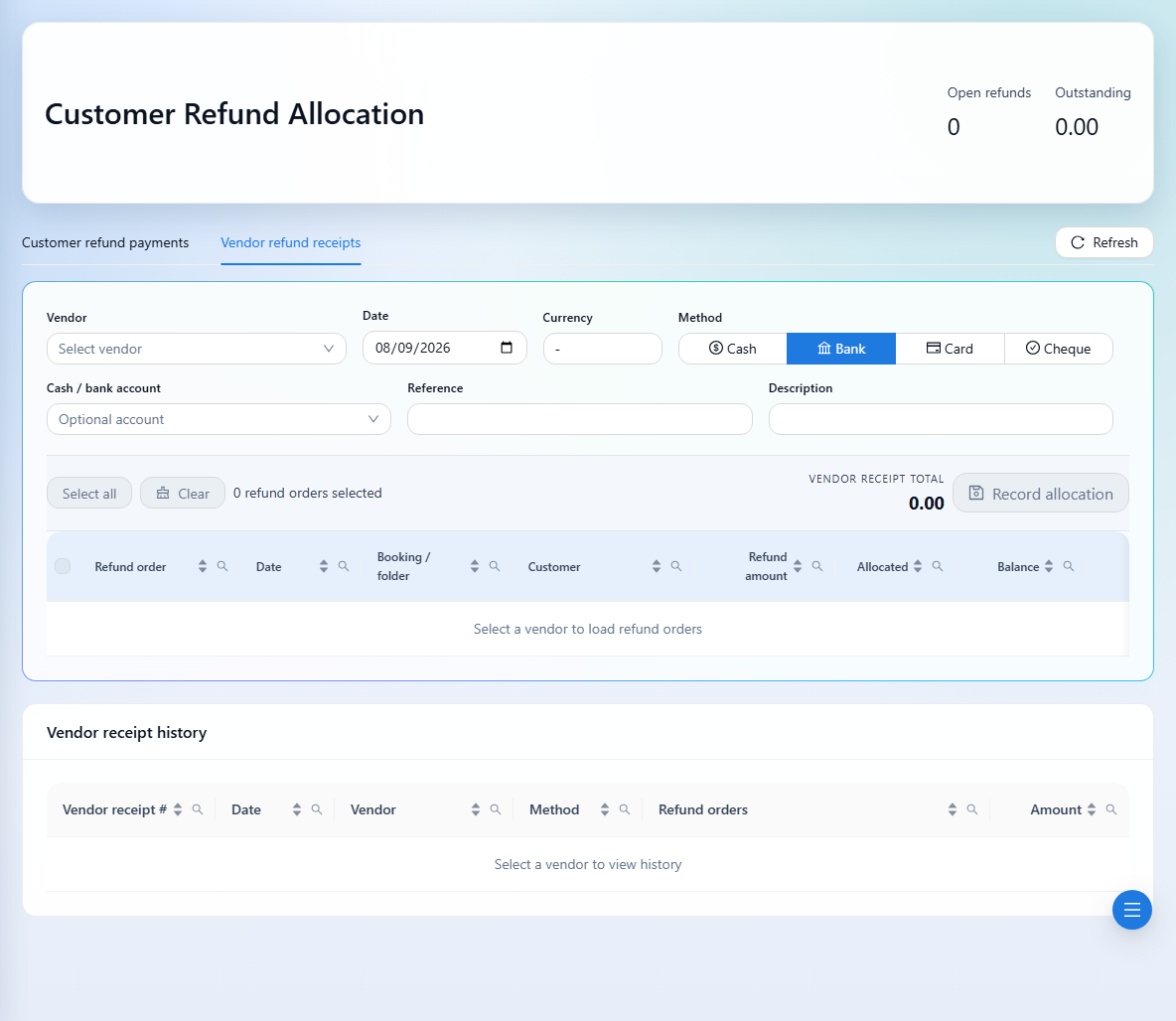
Choose Customer refund payments or Vendor refund receipts, then select the customer or vendor.
- 2
Review the open refund orders, refund amount, allocated amount, and remaining balance. Select the orders to settle.
- 3
Enter the allocation against each selected order without exceeding its balance.
- 4
For a cash movement, complete the date, method, optional cash or bank account, reference, and description, then check the allocation total.
- 5
For a customer invoice adjustment, choose the adjustment option and select the open customer invoices to offset. The invoice adjustment total must equal the selected refund allocation total.
- 6
Save once, then review the updated balances and customer payment or vendor receipt history.
See it in the workspace
Actual portal screens. Private values are hidden where needed. Open an image to see it at full size.
An invoice adjustment offsets balances without the cash-account selection used for cash movements. Choose the correct workflow before saving, and avoid duplicating a payment or receipt already recorded.