Review customer and vendor statements
Follow account activity and understand outstanding balances.
2 min read · 5 steps
Where to go
Reports → Customer Statement / Vendor Statement
Step by step
- 1
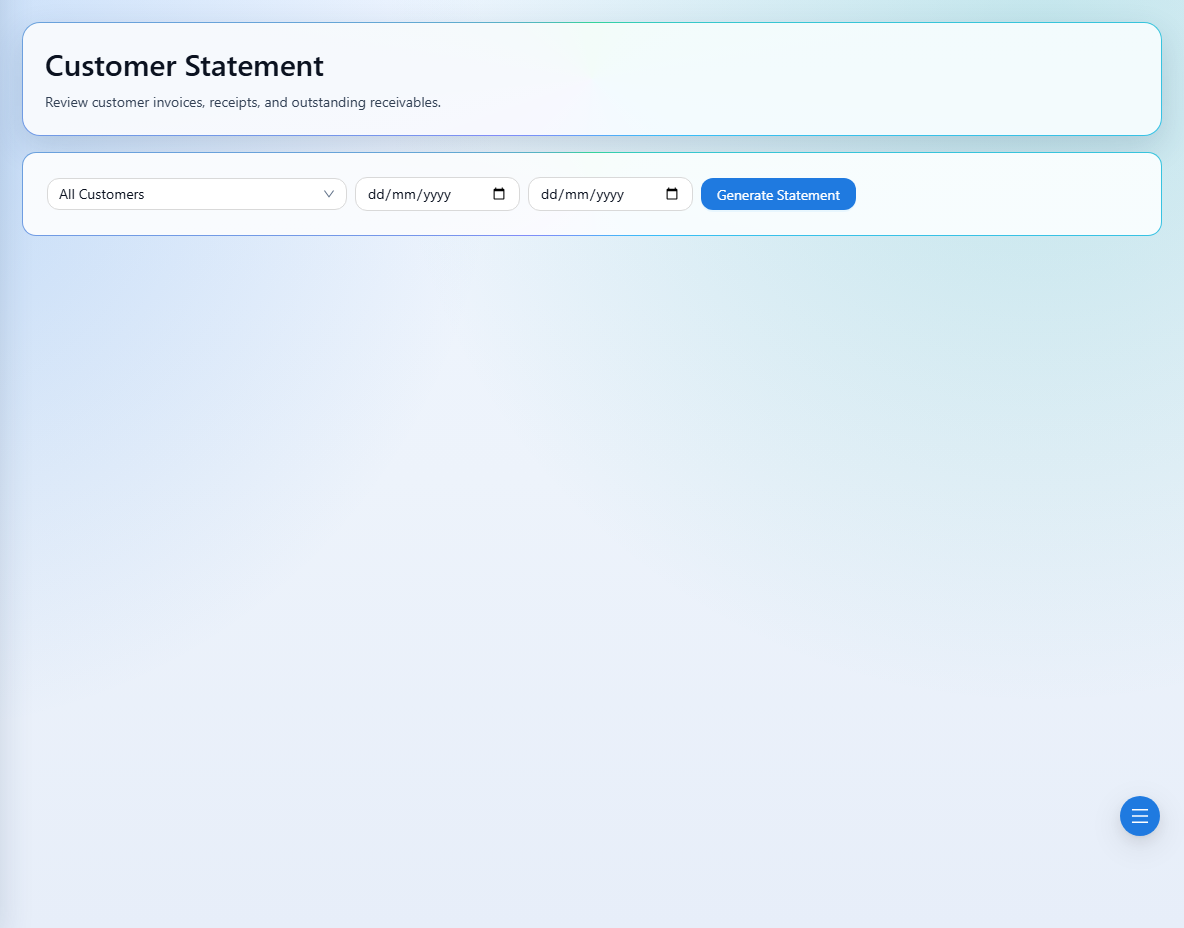
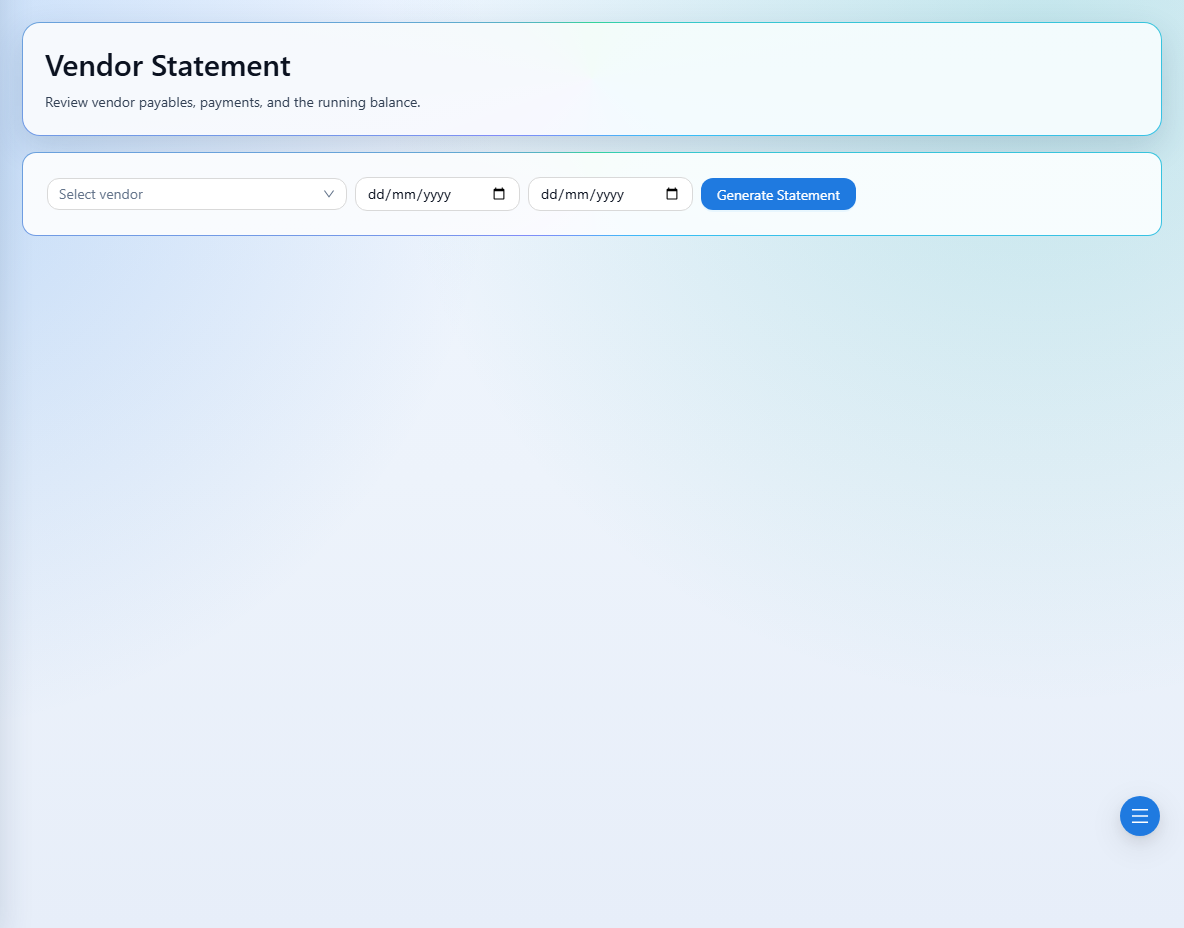
Choose Customer Statement or Vendor Statement under Reports.
- 2
Select the customer or vendor whose activity you need to review.
- 3
Review the invoices and money movements shown for that counterparty, using the available filters.
- 4
Compare relevant receipt or payment references when checking an allocation or balance.
- 5
For vendor payables, check the related invoice: payable rows include invoiced orders and exclude void or cancelled invoices.
See it in the workspace
Actual portal screens. Private values are hidden where needed. Open an image to see it at full size.
Good to know
Statements use your signed-in company automatically. Check the counterparty and filters when comparing records.
Was this guide helpful?